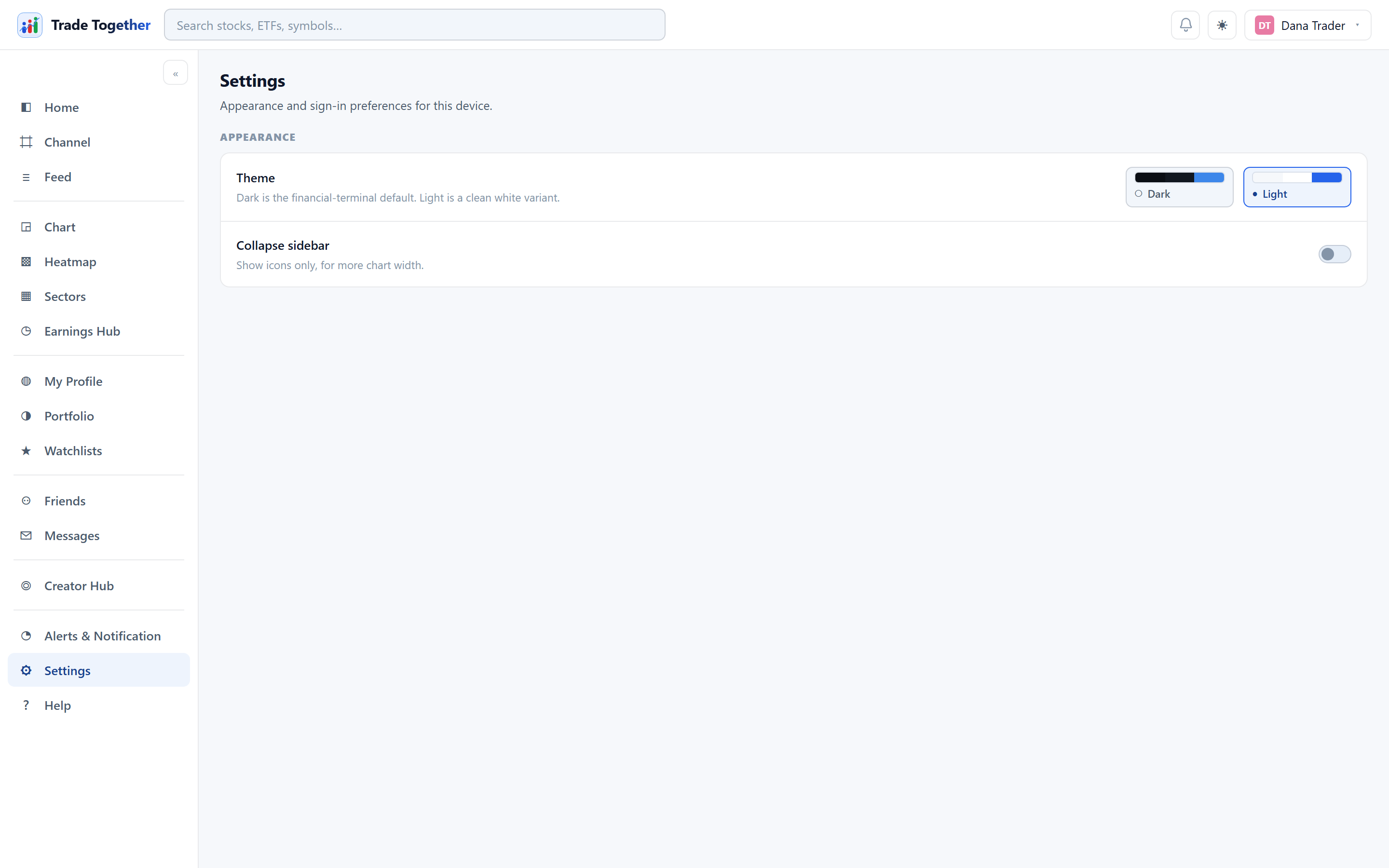
Deliberately small. Two controls, both about how the app looks on this device:
- Theme
- Dark is the default — it is the financial-terminal look the rest of the app is designed around. Light is a clean white variant. Click a swatch to apply it immediately. The ☾ button in the top bar does the same thing.
- Collapse sidebar
- Shows icons only, for more chart width. The same as the « button at the top of the sidebar.
Everything about you — your name, username, bio, picture, links — lives on My Profile, not here. Your visibility choices live on the pages they affect: Watchlists and Portfolio.
Both settings belong to this device, not to your account. They are stored in the browser you are using, so signing in on a phone or a second computer starts you back at the dark theme with the sidebar expanded. That is deliberate: which theme you want depends on the room you are sitting in, and a screen bright enough for an office is the wrong one for a phone at night.
The theme is applied before the page draws its first frame, so a dark device never flashes white on the way in.
On a phone there is no sidebar to collapse — the bottom bar and the ☰ drawer take its place — so that control has nothing to act on and the page is a single choice wide.
What else this browser remembers. Alongside the two controls here, it keeps which sidebar groups you had expanded, so a menu you opened last week is still open when you come back. None of it is account data: signing out leaves all of it exactly as it was, ready for the next person to use this browser, and clearing your browser's site data resets every one of them to the defaults. If the app ever looks wrong rather than behaves wrong, that reset is the first thing to try — nothing you own is stored here, so there is nothing to lose by it.