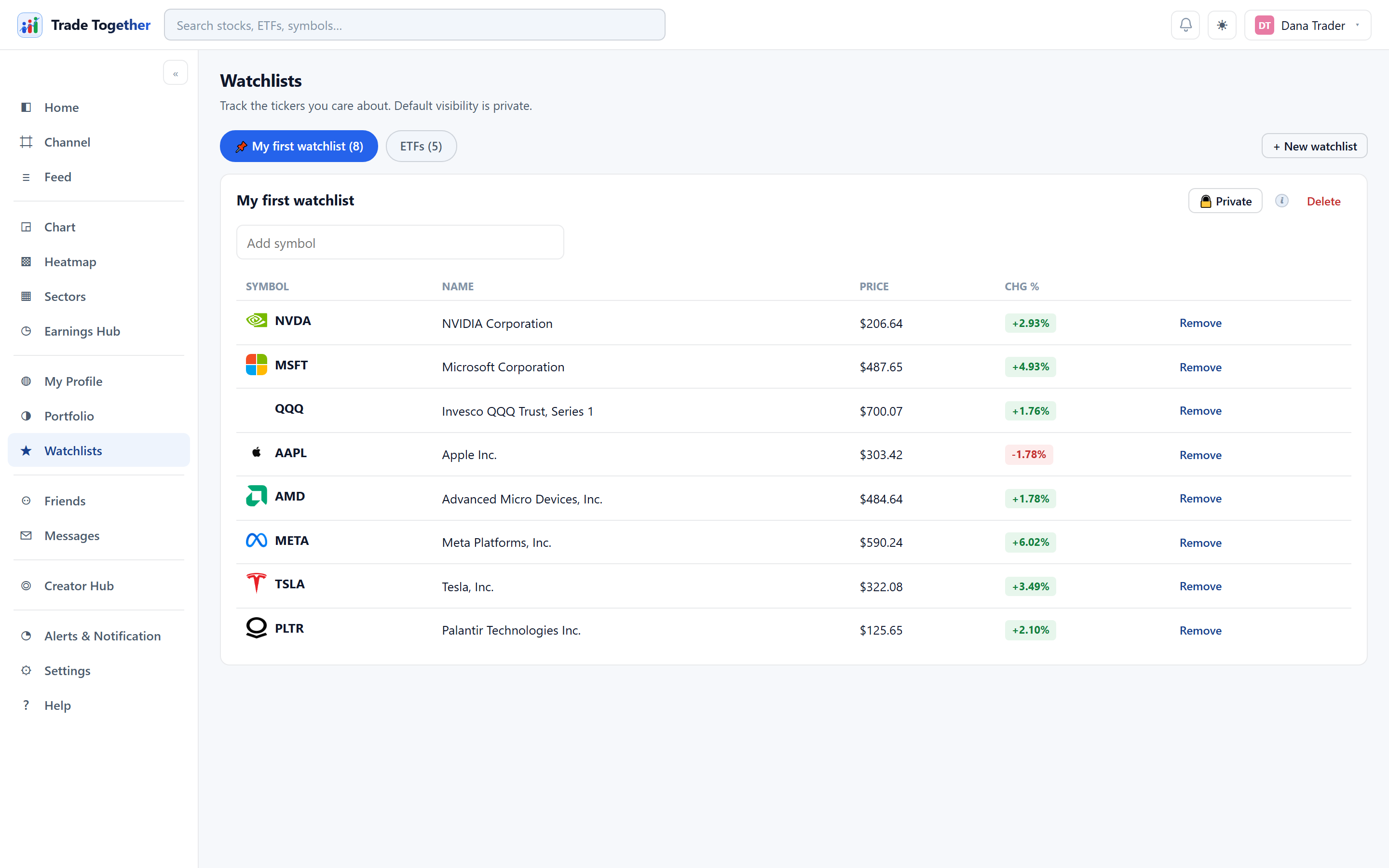
A watchlist is a named list of symbols you want to keep an eye on. You start with one empty list called My first watchlist — empty means empty, there are no example symbols to clear out.
A watchlist is not only a list. It is how you tell the rest of the app what you care about. The symbols on it decide which headlines reach your Feed, which companies appear under Earnings · next 5 days on Home, and 40% of what your personal edition of the paper prints. A symbol you are merely curious about is worth adding for that reason alone — watching costs nothing and changes what four other screens show you.
Prices on an open list update while you are on the page. Several people watching the same symbol share one price lookup rather than each making their own, which is why a busy list stays quick.
11.1 Creating, ordering and deleting
Your lists appear as chips along the top, each showing its name and how many symbols it holds. Click a chip to open that list.
- + New watchlist
- Opens a dialog asking for a name.
- ◀ ▶
- Move the open list left or right, so the order of the chips is the order you want. Your first list is pinned with 📌 and always stays first.
- Add symbol
- Search and pick. Pick from the dropdown rather than typing a ticker blind — that way the symbol matches what the data provider knows, and the price appears.
- Delete
- Removes the whole list, after a confirmation.
The table below shows each symbol with its name, price and change. Clicking a row opens that chart.
11.2 Private or public
Every list starts 🔒 Private. The button at the top of the open list switches it to 🌐 Public and back.
What public actually means Anyone who opens your profile can see the list and every symbol in it. They cannot edit it. It never exposes your holdings or how much you own — a watchlist and a portfolio are different things, and sharing one says nothing about the other.
Visibility applies to the whole list, not to individual symbols. If you want to share some tickers and not others, use two lists.