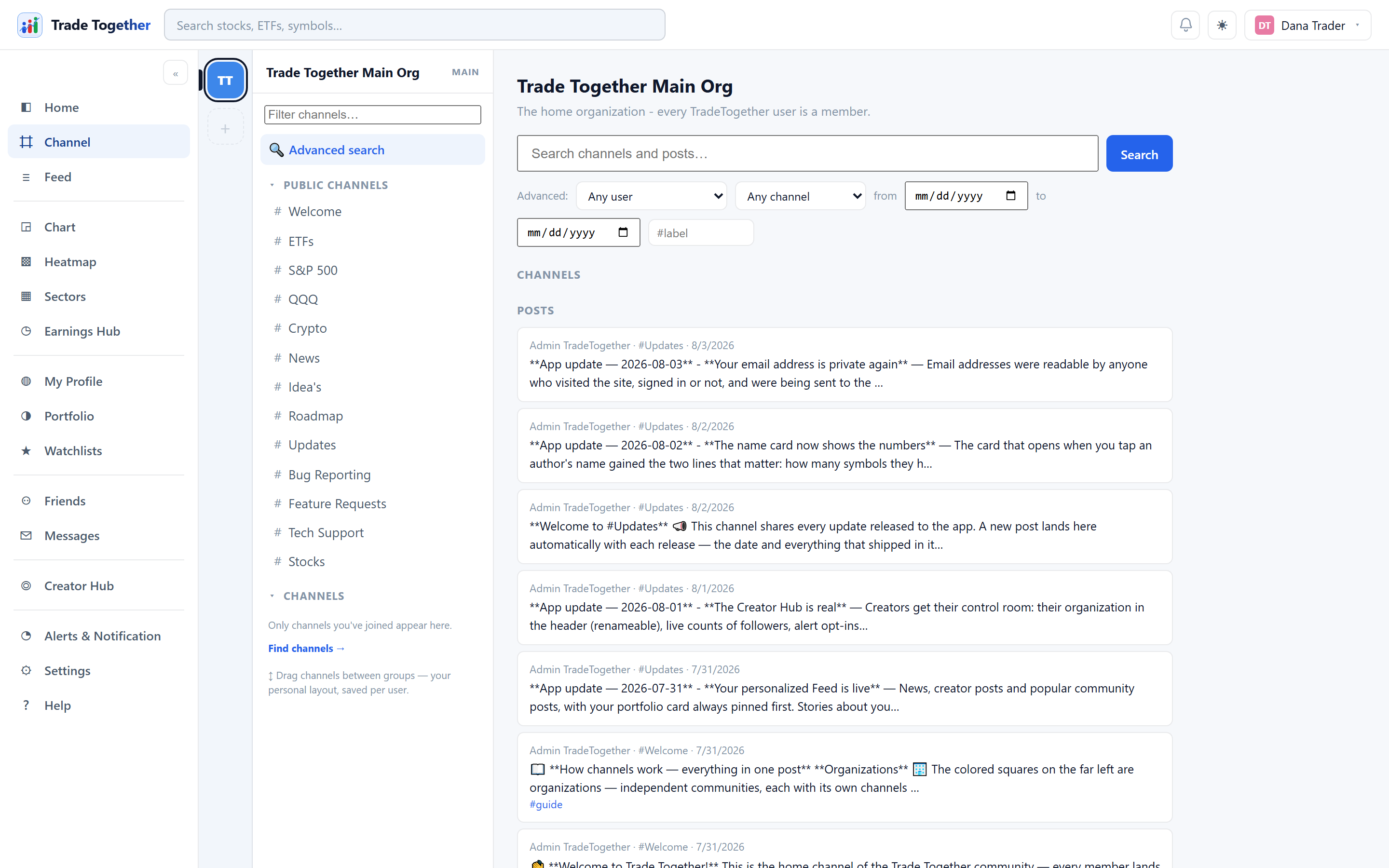
The discussion side of the app, arranged in two levels.
- Organization
- An independent space with its own channels and members. Everybody is
automatically a member of the main organization, which is
where
#Updatesand the bug-reporting channel live. Every other organization is closed — you get in by invitation. - Channel
- Belongs to one organization. Has a name, a description, searchable tags, a type, and a public or private setting.
Adding a video. The ▶ Video button in the composer takes a YouTube link — any form of it: the share link, a Short, one with a start time. The title and channel appear while you write, so you can see you pasted the right thing before posting.
19.2 Channel types, and who can post
The type is chosen when the channel is created and cannot be changed afterwards. It decides who may publish:
| Type | Who posts | Who replies |
|---|---|---|
| Open forum | Everyone who has joined | Everyone |
| Lecture | Managers and lecturers | Everyone, in threads |
| Announcements | Managers only | Nobody — read-only |
The composer tells you which of these you are in, so a channel you cannot post in never looks broken. You can read a channel without joining it; you have to join to post.
19.3 Writing a post
Basic formatting works — bold, italic, code and links — and you can attach images, video and files, and add emoji. Attachments can be removed before you post.
Labels are tags on a single post: type one and press Enter. Clicking a label searches for everything carrying it.
On a published post you can:
- React with an emoji, or give it a heart.
- Reply in thread — replies stay attached to their post rather than filling the channel.
- Edit it for 10 minutes after publishing, after which it locks. The remaining time is shown on the post, and an edited post is marked as edited.
- Delete your own post, which removes its thread too.
A channel you have open refreshes every 30 seconds.
19.4 Polls
Any post you can write can carry a poll. Press 📊 Poll in the composer and a panel opens under it: a question, and between two and five answers.
- How long it runs
- Pick a duration — an hour, six, a day, three days, a week — or No closing time to leave it open. The clock starts when you post, not when you opened the panel. Once a poll closes it takes no more votes; the result stays readable.
- Voting
- Press an answer. The bar behind each answer is the result, so you see where the channel stands the moment you take part. Press a different answer to change your mind, or press your own answer again to take your vote back entirely.
- One vote each
- Not a rule the screen enforces — the database is built so a second vote from the same person has nowhere to go.
- Percentages
- Of votes cast, not of channel members. A poll cannot honestly know what the people who ignored it think.
Nobody can see how you voted. Not the person who wrote the poll, not a channel manager, not an administrator. The totals are public and the ballot is not — your own vote is the only one your account is permitted to read.
A poll cannot be edited once posted, unlike the rest of a post, which stays editable for ten minutes. Changing the wording after people have answered would silently re-attach their votes to a question they never saw. To withdraw a poll, delete the post — the poll and every vote in it go with it.
19.5 Advanced search
From an organization's home page, Advanced search looks through both channels and posts. You can narrow by author, by channel, by a date range, and by label. Channel results come with a Join button; post results jump you to the post.
19.6 Invitations
Private channels and closed organizations are joined by invitation. If you receive an invite link, opening it shows you what you are being invited to and an Accept invitation button. Accepting a channel invitation also joins you to the organization that channel belongs to.
An invite that has been revoked or replaced says so instead of failing quietly — ask whoever sent it for a fresh one.
19.7 If you run a channel
Whoever creates a channel becomes its first manager, and managers can appoint others. A manager sees an extra Settings tab and can:
- rename the channel, edit its description and tags, and switch it between public and private;
- add and remove members, and grant Manager or Lecturer;
- create an invite link, copy it, email it, or Regenerate it — which revokes the old link, and is what to do if one leaks;
- pin posts, and delete any post or reply in the channel;
- delete the channel, which removes every post, thread and file in it.
A public channel does not need invite links at all — any member of the organization can find and join it. Switch it to private to enable them.
You do not have to run a public channel to invite somebody to it. Anyone who has joined a public channel can add any other member of the organization from the same Users tab. It gives them nothing they could not already have taken — a public channel is visible and joinable by the whole organization — it just saves them the walk. A private channel is the opposite case, where being added is the only way in, so there it stays with the managers.